
Install Server.
Server runs as a Windows service and starts with Windows. Its settings stay out of your way in the tray. Double-click its icon beside the clock when you need them.
WINDOWS REMOTE ACCESS · VERSION 0.3.1
Across the office. In another city. Open your saved computer, connect, and get to work in a familiar Windows interface.
3 managed PCs free for 30 days. No payment card.
Windows 10 & 11 · 64-bit
TWO SMALL APPS. ONE CLEAR WORKFLOW.
Put the right app on each PC. The remote computer stays ready in the background; your saved list stays with your Viewer account.
Server runs as a Windows service and starts with Windows. Its settings stay out of your way in the tray. Double-click its icon beside the clock when you need them.
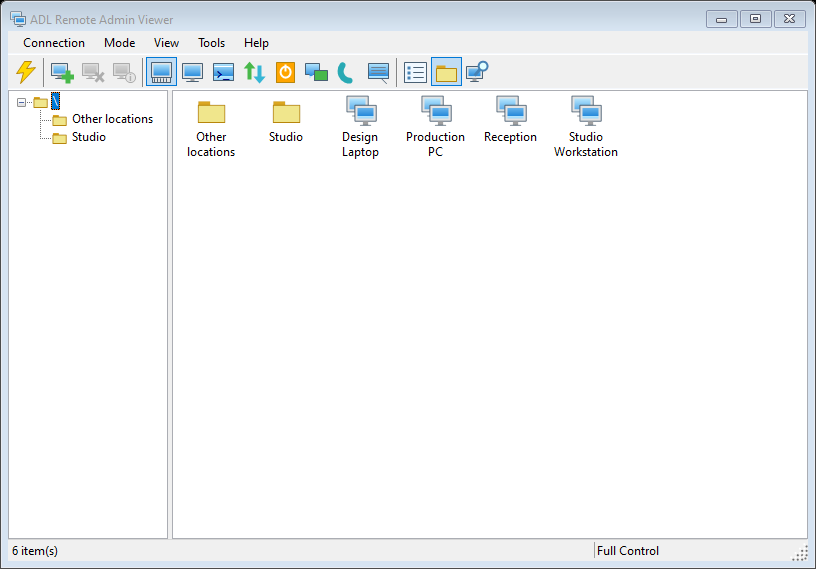
Sign in, add a PC by its share code and wait for the remote user's approval. Give it a useful name, keep it in your address book and reconnect when you need it.
FROM ANOTHER CITY, WITHOUT THE SETUP PUZZLE
The share code is only for the introduction. Approved access stays saved through restarts and changes of internet address, until it is revoked.
Server goes on the PC you want to reach. Viewer goes on your PC. Sign in through Viewer → Tools → Account and subscription.
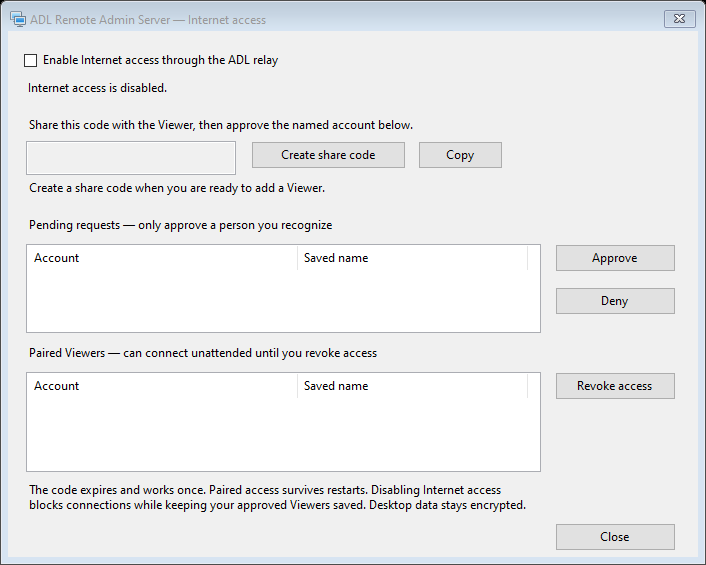
On the remote PC, open Server → Internet access, enable it and choose Create share code. Send that temporary code to the person connecting.
In Viewer choose Connection → Add by share code. Enter the code and a PC name. The remote user checks the account shown in Server and approves it.
Select the computer in Viewer next time. No repeated code exchange. On the remote PC, Internet access → Revoke access disconnects it and removes that approval.
A DESKTOP TOOL FOR DESKTOP WORK
Open a control session when you need to work on the remote PC, or use view-only access to observe its screen.
Use dedicated file-transfer and text-chat modes alongside your remote administration workflow.
Cloud connections use encrypted sessions between Server and Viewer. The Server stores approved Viewer identities locally and lets the remote user revoke them.
ONE ACCOUNT. THE NUMBER OF PCS YOU NEED.
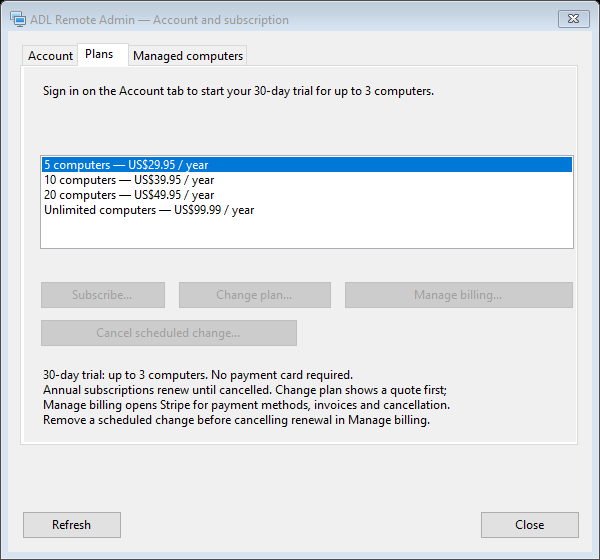
Choose by the number of remote Server PCs managed by your account. Start with a full-feature 30-day trial for up to three PCs, without a card.
5 managed PCs
per year
10 managed PCs
per year
20 managed PCs
per year
Unlimited managed PCs
per year
Already have an account? Manage your subscription
Prices in US dollars, billed annually. Paid subscriptions renew until canceled; cancellation stops the next renewal. Choose a plan to sign in by email and review secure checkout before paying. Your website purchase and Viewer subscription use the same email account. You can also choose a plan inside Viewer. A managed PC is a remote computer running Server.
GET CONNECTED
Both apps are native Windows installers, signed and timestamped. Version 0.3.1 includes the automatic updater.
Install on the PC you want to access.
Starts with Windows. Stays in the tray.
Install on your own PC.
Sign in and add your remote computers.
After an update downloads and verifies, a mandatory notice gives you 60 seconds to save your work. All ADL Remote Admin programs and sessions on that PC close for installation, then restart. Server returns quietly to the tray. Settings and approved access are kept; Windows is not restarted automatically.
Already on 0.3.0 or earlier? Install this newer Server or Viewer once to receive automatic updates. Internet access is needed for licence checks, including LAN/VPN connections.
Installation and update guideBEFORE YOU CONNECT
For approved cloud connections, Server connects outward to the ADL service. You do not need router port forwarding or a VPN. Both PCs need internet access and their network policy must allow the service. Direct LAN/VPN connections are also available.
No. The temporary code starts a pairing request. After the remote user approves the Viewer, its permission and the managed computer remain saved. Restarting an app or PC does not remove that permission. A different Viewer identity needs its own approval.
The remote user opens Server from its tray icon, chooses Internet access, selects an approved Viewer and chooses Revoke access. Active sessions disconnect, and that approval cannot reconnect. To allow access again, create a new share code and approve a new request.
The trial lasts 30 days and covers up to three managed Server PCs. No payment card is required and it does not create an automatic charge. Choose a paid annual plan to keep connecting after the trial. Saved enrolments remain; access pauses when the trial or subscription is no longer valid. Reinstalling or signing out does not restart the trial.
The installed Server runs as a Windows service and starts before desktop sign-in. Approved access does not depend on leaving its settings window open. The remote PC must be on, online and correctly configured; Windows and workplace policies still apply.
Choose an annual plan above, verify your email in the secure account portal and review checkout before paying. Sign in with that same email in Viewer. You can also buy a plan through Viewer → Tools → Account and subscription → Plans. Use account billing management to manage renewal. Never enter payment information into a share-code or Server approval dialog.
Published by Asia Design Lab. Screenshots are rendered by the signed app using its actual native Windows controls. The Viewer contains demonstration names; other screens show empty or signed-out states. No customer data is shown. ADL Remote Admin is an independent product. Use it only on computers you own or are authorized to administer.