
Make your selection.
Press your shortcut and drag around the words. The magnifier helps you get the edges just right.
 SCREEN TRANSLATOR BY ASIA DESIGN LAB
A little clarity, anywhere.
The words you need are already in front of you. Select them, understand them, and get back to what matters.
Windows 10 & 11 · 64-bit · No card required
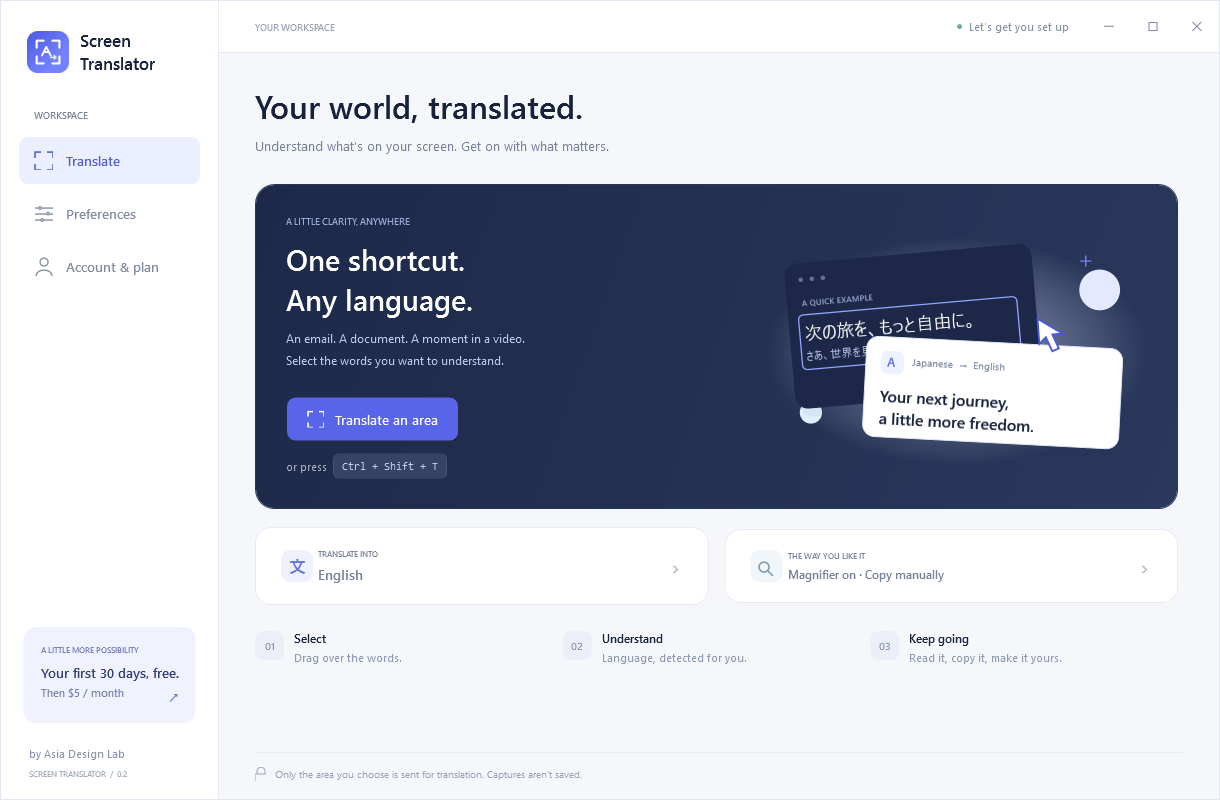
Actual Windows interface. Example content shown.
LESS SWITCHING. MORE UNDERSTANDING.
No copying text into another website. No choosing a source language every time. Just select what you can see.
Press your shortcut and drag around the words. The magnifier helps you get the edges just right.
The source language is detected automatically. Your selection is translated into the language you chose.
Read the result in a small, movable window. Copy it, paste it, and carry on with your day.
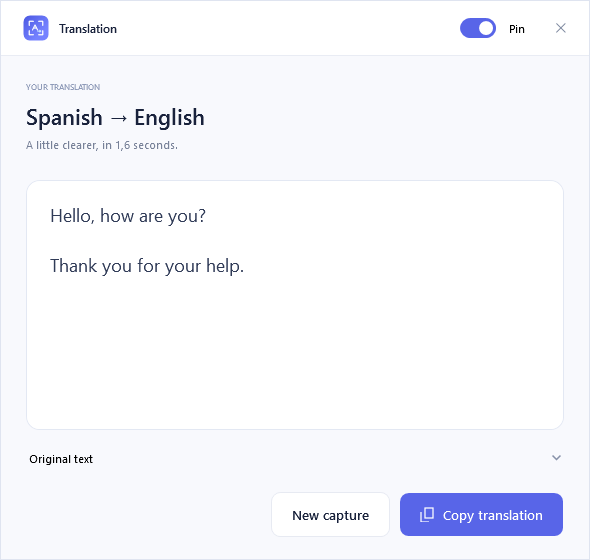 Actual app window · Example translation
MADE FOR THE WAY YOU WORK
That email from abroad. A document you can’t select. The words in a paused video. Translate visible text without breaking your flow.
A global keyboard shortcut brings up the selector, wherever you are in Windows.
Copy with a click, or switch on automatic clipboard copying in Preferences.
Pin the translation on top, move it out of the way, or jump straight into another capture.
YOUR SCREEN. YOUR LANGUAGE.
Choose your target language and shortcut during setup. After that, your preferences are one less thing to think about.
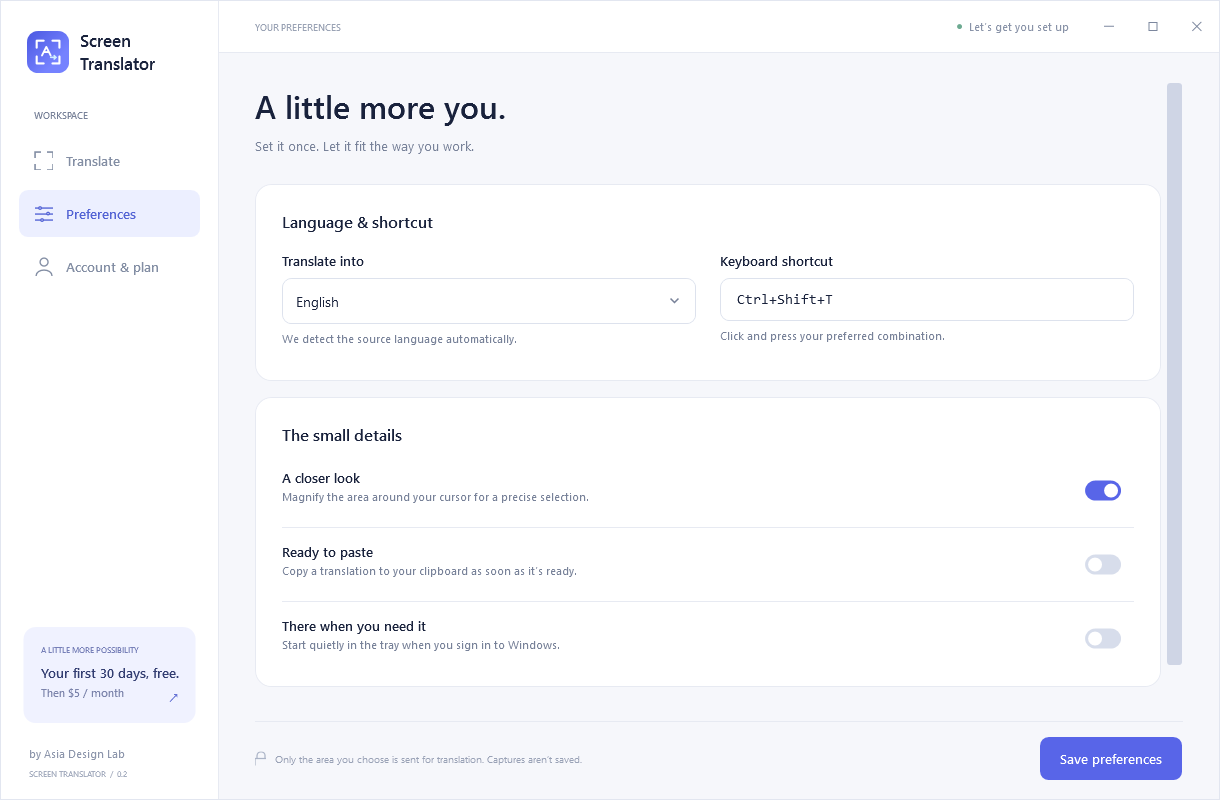
English, Spanish, French, German, Dutch, Japanese, Korean, Chinese, Arabic, and more. Change your target language whenever you like.
AI translation needs an internet connection. You don’t need your own AI account or API key.
KEEP A LITTLE CLARITY CLOSE
Start your free trial with a Screen Translator account. When the 30 days are up, choose whether to continue.
No card required for the trial.
Subscribe in the app after your trial.
Cancel future renewals through your billing portal.
SCREEN TRANSLATORAfter your 30-day free trial.
Install the Windows app, choose your target language and keyboard shortcut, and create a free account. Press your shortcut, drag over readable text, and release to translate. The source language is detected for you.
No. AI translation is provided through the Screen Translator service. You just need your Screen Translator account and an internet connection.
No card is required for your trial, and it does not create a paid subscription. After 30 days, you can choose a US$5 monthly plan in the app. A paid plan renews monthly until you cancel.
Only the area you select is sent securely for AI processing. The app keeps the capture in memory, and the ADL service does not save screenshots or translated content in its database. Account, billing, usage-count and owner-audit records are kept to run the service. Provider processing policies also apply. Read the ADL privacy information.
Readable text visible in apps, webpages, documents, images and paused videos. Protected content may prevent capture, and very small or blurred text can reduce accuracy. Review important translations.
Yes. Both are saved during setup and can be changed in Preferences. You can also switch the magnifier and automatic clipboard copying on or off, and choose whether the app starts with Windows.
The installer is for 64-bit Windows 10 and Windows 11 and includes the required .NET runtime. Signed updates download in the background and install automatically when the app is idle. Your account, language and shortcut preferences are preserved.
YOUR NEXT “GOT IT” STARTS HERE
30 days free · Then US$5 / month
Version 0.3.2 · Signed Windows installer